
Two-Factor Authentication Explained: 6 Simple Steps to Protect Your Most Important Accounts in 15 Minutes
Two-factor authentication is one of the smallest changes you can make to your online life, and one of the most effective. Passwords leak all the time: a website gets breached, an old password gets reused, or someone types their login into a convincing fake page. When that happens, the second factor is the last door that keeps an attacker out.
If you have heard of 2FA, two-step verification or one-time codes but never got around to setting them up, this guide walks you through it: what two-factor authentication is, which type to choose, how to turn it on for your key accounts in about 15 minutes, and the mistakes that quietly undo the protection.
Contents: two-factor authentication
1. What is two-factor authentication, and why isn’t a password enough?
Put simply, two-factor authentication asks you to prove you own an account with two different kinds of evidence. The first is the password you remember. The second is something you physically have, usually your phone. An attacker can guess, buy or phish a password, but it is much harder for them to have your phone at the same time.
Most lost email and social media accounts are not the result of sophisticated hacking. They come from reused passwords, easy-to-guess passwords or a fake link sent by text message. Two-factor authentication does not fix weak password habits, but it turns a leaked password from “account gone” into “a warning about a strange sign-in”.
The three kinds of sign-in evidence
- Something you know: a password, PIN or security question.
- Something you have: a phone that receives codes, an authenticator app, a USB security key.
- Something you are: the fingerprint or face you use to unlock a device.
Real two-factor authentication combines two different kinds. Two passwords in a row are still just one factor.
2. Common types of two-factor authentication: which one should you pick?
Not every form of 2FA is equally strong. These are the four options you will see in the security settings of most services, from the most common to the most secure.
Text message (SMS) codes
This is the most familiar type: you sign in and receive a text with a 6-digit code. The upside is that you do not need to install anything. The downside is that the code travels over the mobile network, so it can be stolen if someone tricks your carrier into issuing a new SIM, or simply tricks you into reading the code out loud.
💡 Quick tip: SMS codes are still far better than having nothing. If a service only offers text messages, turn it on now and switch to an app later if it becomes available.
Authenticator apps
Apps such as Google Authenticator, Microsoft Authenticator or the code generator built into many password managers create a fresh 6-digit code every 30 seconds, right on your phone. The code never goes through a text message and works even without signal. For most people this is the best balance of safety and convenience.
Sign-in prompts on your phone
Google, Microsoft, Apple and many banks send a “Is this you trying to sign in?” prompt to a device you already trust. You just tap to approve. It is convenient, but read the location and device shown in the prompt, and never approve a request when you are not signing in yourself.
Security keys and passkeys
Physical security keys (plugged into USB or tapped via NFC) and passkeys offer the strongest protection available today because they are tied to the real website address. A fake page cannot capture them the way it can capture an SMS or app code. They are a great fit for work email, admin accounts and anyone who is a likely target.
3. 6 steps to turn on two-factor authentication for your key accounts
You do not have to secure every account at once. Start with your “core” accounts: the ones an attacker could use to reset the passwords of everything else.
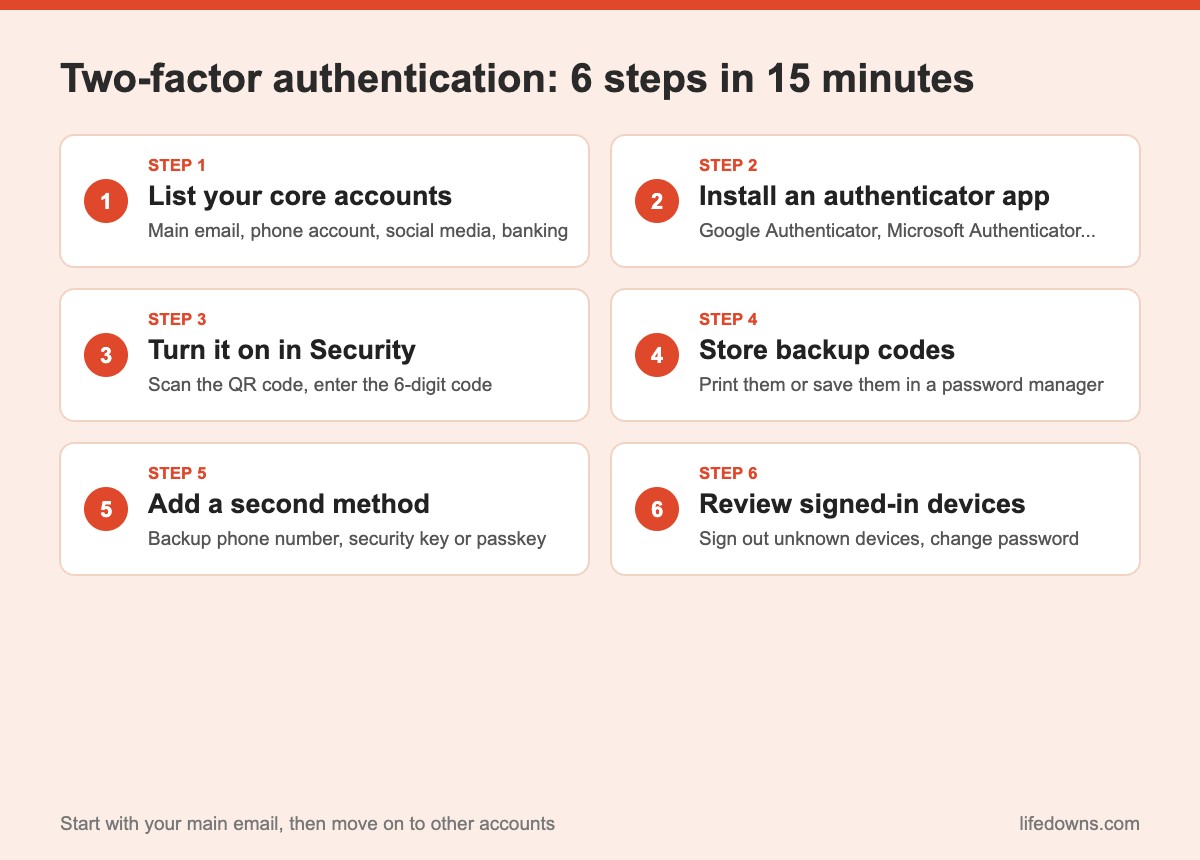
Step 1: List your core accounts
Grab a piece of paper or open a note and write down your main email (usually Gmail or Outlook), the Apple or Google account on your phone, your social media accounts, messaging apps, banking apps and digital wallets. Your main email always comes first, because almost every other service sends password reset links there.
Step 2: Install an authenticator app
Download Google Authenticator or Microsoft Authenticator from the official app store. If you already use a password manager, check whether it can generate verification codes so everything lives in one place.
Step 3: Turn on two-step verification in your security settings
Open the Security or Sign-in and security section of each service and look for “2-Step Verification” or “Two-factor authentication”. For a Google account, you can follow Google’s official guide to turning on 2-Step Verification. Usually the service shows a QR code; you scan it with your authenticator app and enter the 6-digit code it displays to finish.
Step 4: Store your backup codes right away
Once 2FA is on, most services give you a list of single-use backup codes. These are your spare keys for when you lose or replace your phone. Print them and keep them with your important documents, or save them in your password manager. Do not take a screenshot and leave it buried in your photo gallery.
💡 Quick tip: Label each set of backup codes with the account and the date. Generating a new set usually cancels the old one, so throw away old printouts.
Step 5: Add a second verification method
Besides the authenticator app, add a backup phone number or a security key if the service allows it. Many people register only one method and lock themselves out the day their phone breaks.
Step 6: Review the devices that are signed in
The same security page usually has a “Your devices” or “Where you’re signed in” section. Sign out of anything you do not recognize, old phones you have sold and shared computers. If you spot an unfamiliar device, change your password right after turning on two-factor authentication.
4. Mistakes that make two-factor authentication useless
Two-factor authentication is powerful, but users can accidentally open the door themselves. These are the most common mistakes:
- Reading a code to someone else: Real banks, carriers and support staff never ask for your verification code.
- Approving a prompt you did not trigger: If your phone asks you to approve a sign-in you did not start, your password has leaked. Deny it and change the password.
- Skipping backup codes: Losing your phone without backup codes can mean days of account recovery.
- Protecting social media but not email: Email is the master key to every other account, so it needs protection first.
- Typing codes into unfamiliar pages: Always check the web address before entering a code, especially after tapping a link in a message.
💡 Remember: A verification code is only for you to type into a page you opened yourself. Anyone who asks for it, for any reason, is a red flag.
5. The bottom line: two-factor authentication is a 15-minute habit
Turning on two-factor authentication for your main email, phone account, social media and banking takes about as long as a coffee break. In return you get a layer of protection that works quietly every day, even when a password leaks from some website you have long forgotten about.
Comparison table: types of two-step verification
| Method | Security | Convenience | Best for |
|---|---|---|---|
| SMS code | Medium | Very easy | Services that only offer SMS |
| Authenticator app | High | Easy | Most people |
| Sign-in prompt | High (if you read it) | Very easy | Google, Microsoft, Apple, banks |
| Security key / passkey | Very high | Needs setup | Work email, admin accounts |
Note: Setting names may differ depending on the service and app version.
A few final tips
- Go in order: Main email first, then your phone account, social media and banking.
- Move the app when you switch phones: Use your authenticator app’s transfer feature before wiping the old phone.
- Pair it with unique passwords: Two-factor authentication is strongest when every account has its own password.
- Check in regularly: Every few months, review your signed-in devices and recovery phone number.
More from our Cybersecurity section: One password for everything: why it’s risky and “Your account is locked” texts: how to spot the scam.
FAQ about two-factor authentication
What is two-factor authentication?
Two-factor authentication (2FA) adds a second check on top of your password, such as a 6-digit code from an authenticator app, a text message code or a sign-in prompt on your phone. Someone with your password still cannot get in without that second step.
Is a text message code or an authenticator app better?
An authenticator app is safer because the code is generated on your phone and never travels over the mobile network, so it cannot be stolen through SIM swapping. Text message codes are still far better than nothing.
What if I lose my phone?
Use the backup codes you saved when you turned on two-factor authentication, or a second method such as a backup phone number or security key. That is why you should store backup codes right away.
Does 2FA make signing in annoying?
It adds a few seconds when you sign in on a new device. On devices you use every day, most services let you remember the device, so you rarely need to enter a code.
How many of your accounts already have two-factor authentication turned on? Leave a comment and tell us which service was the hardest to set up, and we can figure it out together! Save this post so you can follow the steps when you have a spare 15 minutes. 🔐📱