
Free Up Phone Storage: 6 Easy Steps to Clear Space When Your Phone Is Full
Knowing how to free up phone storage is something almost everyone needs when the “storage full” warning appears: you cannot take more photos, apps will not update and the phone feels sluggish.
The good news is that you do not need a new phone or a “cleaner” app. With the 6 easy steps below to free up phone storage, using the tools already built into Android and iPhone, you can get several gigabytes back in about 20 minutes.
Contents: free up phone storage
1. Why does a phone fill up so fast?
Most of the space is not taken by things you saved on purpose, but by things that pile up quietly: photos and videos from group chats, social media cache, files you downloaded once and forgot, and apps you have not opened in months.
When storage is nearly full, the system lacks room for temporary files and updates, so the phone can become slower and more error-prone. Keeping roughly 10–15% free is a comfortable level for most devices.
2. 6 steps to free up phone storage
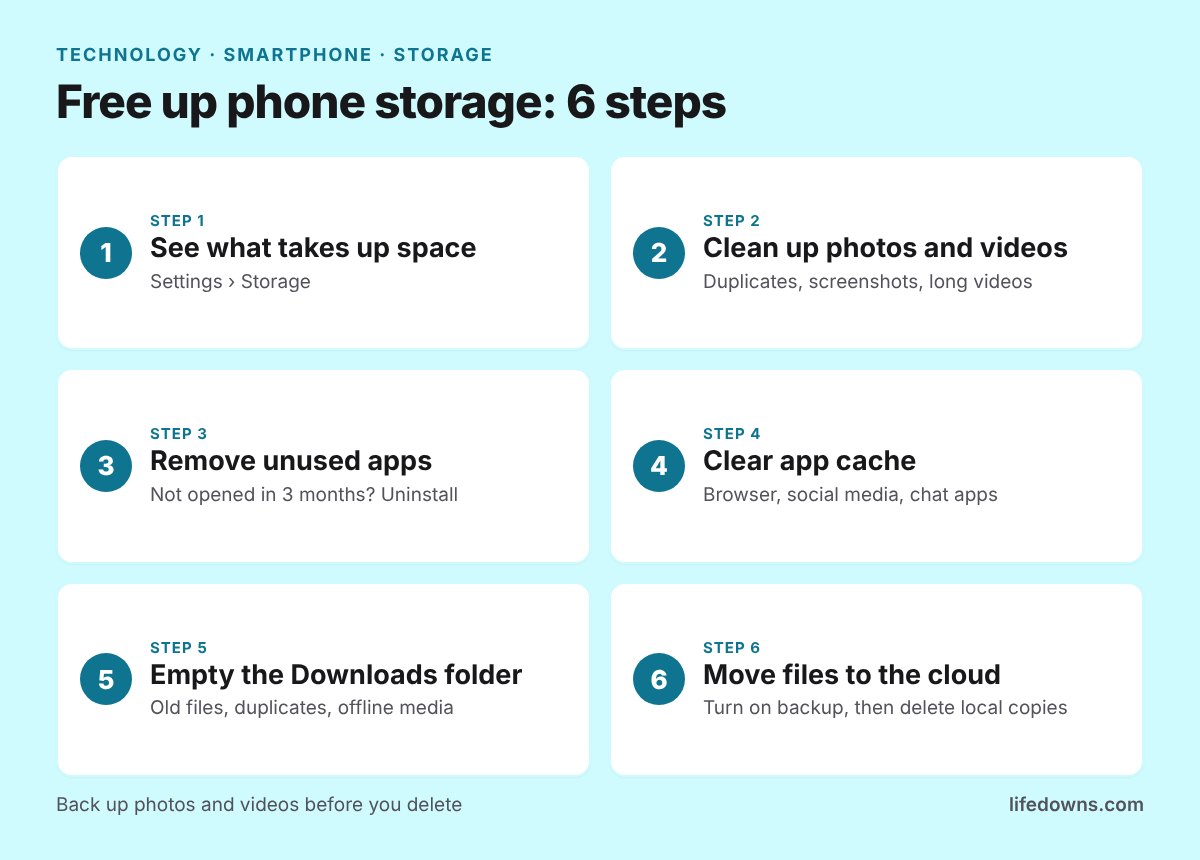
Step 1: See what is taking up space
Do not delete at random. Open the storage breakdown first to find the real culprit:
- Android: Settings › Storage. See also Google’s guide to freeing up space on Android.
- iPhone: Settings › General › iPhone Storage.
The phone lists usage by category: photos, videos, apps, files and system. Start with the biggest one.
Step 2: Clean up photos and videos
This is usually the largest category. Long videos and high-resolution clips can be hundreds of megabytes each.
- Delete duplicates, blurry shots and burst photos.
- Delete old screenshots you no longer need.
- Sort videos by size and deal with the largest files first.
- Empty the “Recently Deleted” folder, because photos still take space until they are removed for good.
💡 Quick tip: Back up photos and videos to the cloud or a computer, and check the backup has finished, before you delete anything.
Step 3: Remove apps you rarely use
Open the app list and sort by size or by last used. If you have not opened an app in 3 months, uninstall it; you can always download it again. Games tend to be the heaviest.
Step 4: Clear cache and chat data
Browsers, social media and video apps store a lot of temporary data. On Android, go to Settings › Apps › choose the app › Storage › Clear cache. For chat apps such as WhatsApp, Messenger or Telegram, open the storage manager inside the app to delete old photos and videos from group chats.
💡 Quick tip: “Clear cache” only removes temporary files. “Clear data” signs you out and resets the app, so think before you tap it.
Step 5: Empty the Downloads folder
Open the Files app, go to Downloads and delete old PDFs, installers and documents you are done with. Do not forget music, films and podcasts saved for offline use.
Step 6: Move data to the cloud
Turn on automatic photo backup (Google Photos, iCloud or the service you use), then use its free-up-space feature to remove local copies that are already backed up. On phones with a card slot, you can move photos and videos to a memory card.
3. Priority table: what to clean first
| Item | Space recovered | How safe | Time |
|---|---|---|---|
| Long and duplicate videos | Very high | Back up first | 5 minutes |
| Unused apps and games | High | Safe, can reinstall | 3 minutes |
| Chat app data | High | Check before deleting | 5 minutes |
| App cache | Medium | Safe | 3 minutes |
| Downloads folder | Medium | Check before deleting | 3 minutes |
Note: Menu names may differ slightly depending on your phone brand and operating system version.
Habits that keep your phone from filling up again
- Turn off auto-saving of photos and videos from group chats.
- Tidy your photos at the end of each month; it takes 5 minutes.
- Stream instead of downloading when you have Wi-Fi.
- Record video at a resolution that is good enough, not the maximum.
4. Summary: free up phone storage without extra apps
You free up phone storage most effectively when you work in order: check the breakdown, clean photos and videos, remove apps, clear cache, empty downloads, then move data to the cloud. The built-in tools are enough, so you do not need a cleaner app from an unknown source.
More in Technology: Software Updates on Your Phone and Computer: Why You Shouldn’t Skip Them and 6 Steps to Update Safely and Phone Battery Charging Done Right: 7 Simple Habits That Keep Your Battery Healthy for Years.
Frequently asked questions about how to free up phone storage
Does clearing cache delete my data?
No. Cache is only temporary files. An app may load images a little more slowly the first time you open it, but your account and messages stay intact.
Should I install a cleaner app?
Usually not. The storage tools built into Android and iPhone already do most of the job, while many cleaner apps come with ads and ask for a lot of permissions.
Why did my storage not change after deleting photos?
Deleted photos usually stay in “Recently Deleted” or “Trash” for about 30 days. Empty that folder to get the space back.
How much storage should I keep free?
Aim for about 10–15% free so the phone has room for temporary files and updates.
How many gigabytes does your phone have left? Try the 6 steps above to free up phone storage and share your result in the comments! 📱✨