
Software Updates on Your Phone and Computer: Why You Shouldn’t Skip Them and 6 Steps to Update Safely
Software updates are the notification many people dismiss with “Later” again and again. The usual reasons: fear the phone will slow down, fear of losing data, or simply being busy. But every skipped update may be a security hole left open on the phone that holds your banking apps and personal photos.
This guide explains why software updates matter, which worries are reasonable, and 6 steps to update your phone and computer safely so you can tap “Install now” with confidence.
Contents: software updates
1. Why software updates matter
Each update, often called a patch, usually does three things: fixes security vulnerabilities, fixes bugs and adds features. As Wikipedia’s article on software patches explains, patches are released to fix problems and vulnerabilities after software is already in users’ hands.
Once a vulnerability is made public, attackers know about it too. Devices that have not been updated become easy targets. That is why manufacturers urge people to install security patches as soon as possible.
Three common types of updates
- Security patches: small, quick to install, install right away.
- Bug fixes: address battery drain, app crashes and connection problems.
- Major upgrades: a new operating system version with many design and feature changes.
2. Common worries about software updates
“My phone will be slower after updating”
After a major upgrade, a device may run warmer and use more battery for a few days while it re-indexes data. This usually settles down on its own. Small security patches have almost no noticeable effect on speed.
“I’ll lose my data”
Official updates are designed to keep your data intact. The main risk comes from the battery dying or the connection dropping halfway, and both are easy to prevent with the steps below.
💡 Quick tip: If you are nervous about a major upgrade, wait a few days to see how others find it, but never delay security patches.
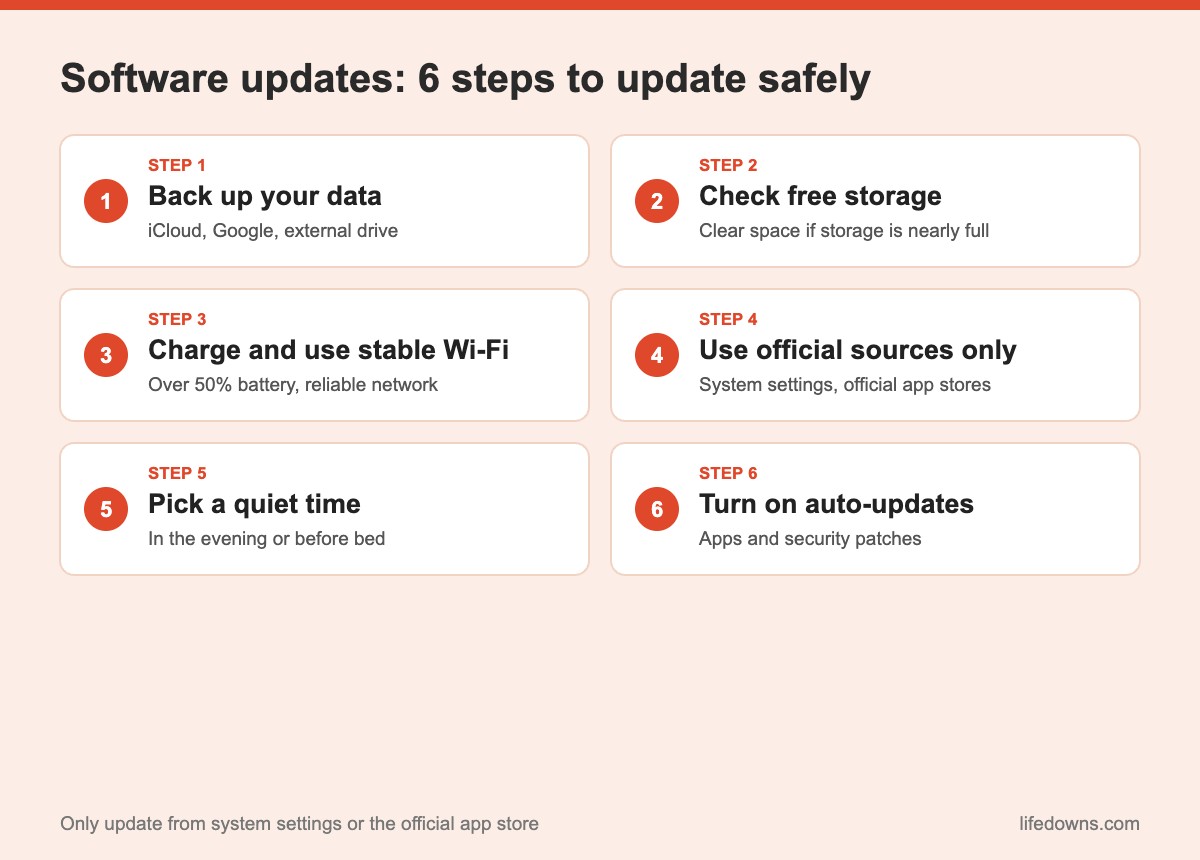
3. 6 steps to install software updates safely
Step 1: Back up your data
Before a major upgrade, back up photos, contacts and important messages to iCloud, Google or an external drive. It is the cheapest insurance you can get.
Step 2: Check your free storage
Updates need room to download and unpack. If storage is nearly full, delete unused apps and old videos or move photos to the cloud first.
Step 3: Plug in and use stable Wi-Fi
Make sure your battery is above 50% or keep it charging the whole time. Use reliable home Wi-Fi rather than patchy public Wi-Fi to download the update.
Step 4: Only update from official sources
On a phone, go to Settings > General > Software Update (iPhone) or Settings > System/Software update (Android, depending on the brand). On a computer, use Windows Update or System Settings on macOS. Update apps only through the App Store or Google Play.
💡 Watch out: Websites or pop-up ads saying “Your phone needs an update, download here” are usually scams. Real updates always live in your device’s settings.
Step 5: Pick a quiet time
Major upgrades can take 20–60 minutes. Update in the evening or before bed, when you do not need your device urgently. Many devices let you schedule installation overnight.
Step 6: Turn on automatic updates
Enable automatic updates for apps and security patches so you do not have to remember. You can still choose to install major upgrades manually if you prefer more control.
4. When your device stops getting updates
Each manufacturer only supports devices for a certain number of years. Once your device stops receiving security patches, it still works for calls and entertainment, but you should:
- Limit banking on that device.
- Install only necessary apps from official stores.
- Turn on two-factor authentication for important accounts.
- Consider upgrading when you can, especially for a work device.
5. The bottom line: software updates are the easiest way to protect your devices
Installing software updates takes no technical skill, just a few minutes of preparation: back up, free up space, plug in, use stable Wi-Fi and update from official sources. In return you get a safer device with fewer bugs that often runs more smoothly.
Summary table: types of updates
| Update type | Size | Install time | When to install |
|---|---|---|---|
| Security patch | Small | 5–15 minutes | As soon as possible |
| Bug fix | Small – medium | 10–20 minutes | Within a few days |
| OS upgrade | Large | 20–60 minutes | After a backup, at a quiet time |
| App updates | Small | A few minutes | Turn on auto-updates |
Note: Times and setting names vary by device, brand and network speed.
A few final tips
- Restart after updating: It helps the system run smoothly.
- Update your Wi-Fi router too: Network devices need patches as well.
- Delete unused apps: Fewer apps means fewer risks.
- Read the release notes: Know what each update fixes and adds.
More from our Technology section: Phone battery charging done right and Slow phone? What to clean up before buying a new one.
FAQ about software updates
Should I install software updates as soon as they come out?
Install security patches promptly. For major upgrades you can wait a few days to see feedback, but do not put them off for long, or your device will miss important fixes.
Can software updates delete my data?
Normally no. Problems can still happen if the battery dies or the update is interrupted, so back up your data and plug in your device before updating.
My phone feels slower after an update. What should I do?
After a major update, devices can run warmer or slower for a few days while they re-index data. If it continues, restart, free up storage or contact an authorized service center.
What if my old device no longer gets updates?
Once the manufacturer stops support, the device no longer receives new security patches. It is fine for simple tasks, but limit banking on it and consider upgrading.
Is your phone running the latest software updates? Check now and leave a comment about your experience after updating! Save this post to follow before your next major upgrade. 📲🔄