
Password Manager: What It Is and 6 Easy Steps to Get Started in 15 Minutes
A password manager is an app that keeps all your passwords in an encrypted “vault” locked by a single master password. You remember one password, and the app creates, stores and fills in the rest.
If you reuse one password across many accounts or keep them in your phone’s notes, this guide explains how a password manager works and walks you through 6 easy steps to get started in about 15 minutes.
Contents: password manager
1. What is a password manager and how does it work?
Think of it as a digital safe. Every username and password sits inside the safe, encrypted, and it only opens when you enter the master password or use your fingerprint or face.
When you open a website or app, the manager fills in the right account. When you sign up for something new, it suggests a long, random password and saves it straight away. According to the UK National Cyber Security Centre (NCSC), this lets you have a strong, different password for every account without having to memorise them.
2. Why use a password manager?
- A unique password per account: one leaked site does not expose the others.
- Long, random passwords: far harder to guess than a birthday or phone number.
- Autofill on the real site only: it fills in on the genuine address, which helps you spot fake pages.
- Sync across devices: your phone and computer share the same vault.
- Breach alerts: many apps warn you when one of your passwords appears in a data leak.
3. Built-in or a separate app?
| Type | Examples | Advantages | Keep in mind |
|---|---|---|---|
| Built into your device or browser | Apple Passwords, Google Password Manager | Free, nothing extra to install | Do not use on shared or public computers |
| Separate app | Bitwarden, 1Password, Proton Pass | Works across operating systems and browsers | Some features are paid |
Note: App names are common examples only, not endorsements. Choose an app from a reputable developer and download it from an official app store.
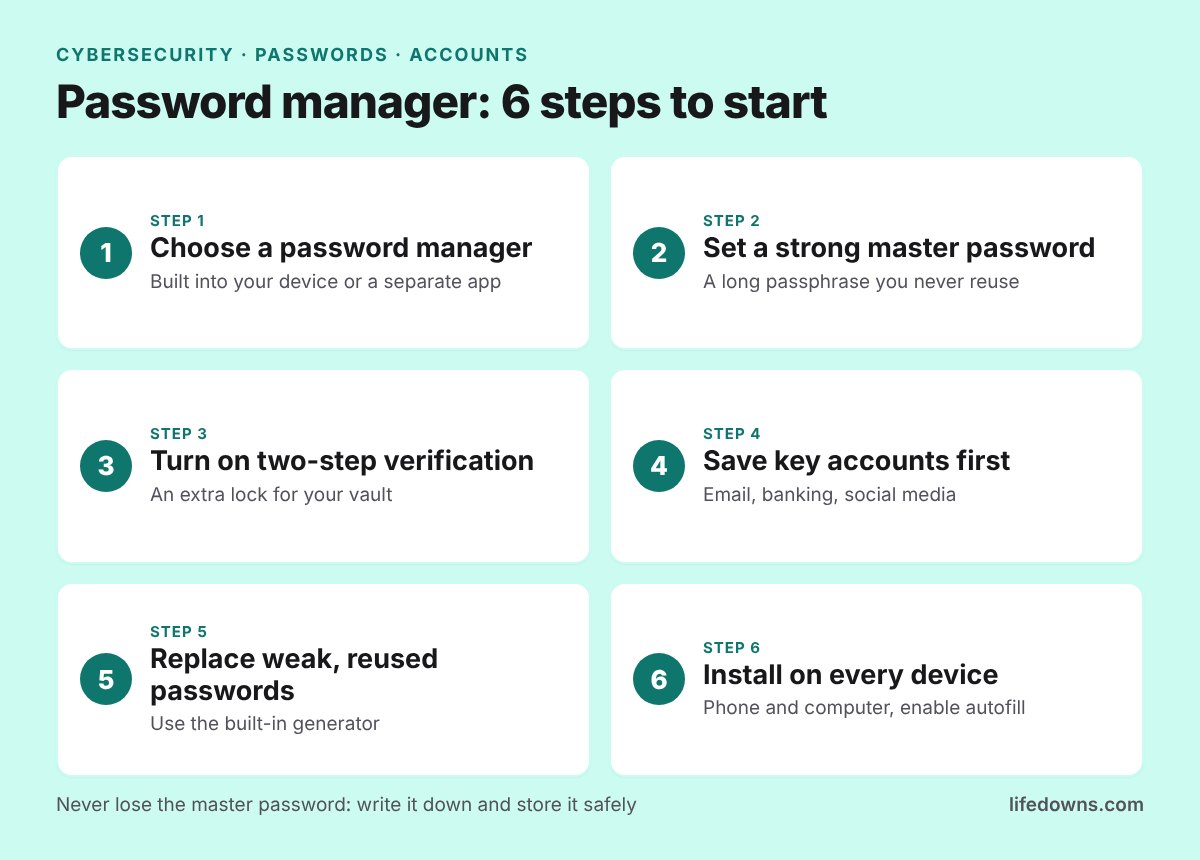
4. 6 easy steps to start using a password manager
Step 1: Choose a password manager
If all your devices come from one maker, the built-in tool is enough. If you mix an Android phone, a Windows computer and an iPad, a separate app is more convenient.
Step 2: Set a strong master password
This is the only password you have to remember. Use a passphrase of 4–5 unrelated words, at least 15 characters long, and never reuse it anywhere else.
💡 Quick tip: Write the master password on paper and keep it somewhere safe at home. If you forget it, many services cannot recover it for you.
Step 3: Turn on two-step verification
Your vault is the most important place to protect, so it deserves an extra lock. With two-step verification on, someone who learns the master password still cannot get in.
Step 4: Save your key accounts first
Do not try to enter everything at once. Start with your main email, banking, e-wallet and social media. Other accounts will be saved gradually each time you sign in.
Step 5: Replace weak and reused passwords
Most managers include a password check that lists weak, reused or leaked passwords. Replace them one by one with the built-in generator, starting with email and banking.
💡 Quick tip: If a service offers passkeys, turn them on. They are a newer way to sign in that is safer than a traditional password.
Step 6: Install it on every device and enable autofill
Install the app on your phone and the extension in your computer’s browser, then enable autofill in settings. Once you are comfortable, delete passwords you once kept in notes, emails or screenshots.
5. Summary: one master password, safer accounts everywhere
A password manager lets you drop the habit of using one password everywhere without needing a superhuman memory. It takes about 15 minutes to pick a tool, set a master password, turn on two-step verification and save your first few accounts. The rest you can do bit by bit over the following weeks.
More in Cybersecurity: Public Wi-Fi Safety: 7 Essential Habits for Cafés, Airports and Hotels and Two-Factor Authentication Explained: 6 Simple Steps to Protect Your Most Important Accounts in 15 Minutes.
Frequently asked questions about using a password manager
Is a password manager safe?
Reputable apps encrypt your data on your own device, so only someone with the master password can read it. Nothing is perfectly secure, but this is far safer than reusing passwords.
What if I forget the master password?
Many services cannot recover it. Write it down, store it safely and set up the recovery options the app offers from day one.
Is it OK to save passwords in my browser?
Yes, on a personal device with a screen lock. Do not save them on shared or public computers.
Do I have to pay?
Not necessarily. The built-in tools from Apple and Google and the free plans of some apps cover basic personal needs.
How do you keep track of your passwords today? Try a password manager this week and share how it goes in the comments! 🔐📱