
Write Emails with AI: 5 Easy Prompts You Can Use Today and How to Check the Result
Learning to write emails with AI is one of the simplest ways to save time every day. Instead of spending 15 minutes wondering how to open a time-off request or a reminder to a colleague, you get a draft in seconds and only need to adjust it.
The quality of the result, however, depends on how you ask. This guide gives you a four-part formula, 5 easy prompts to write emails with AI at work, and the checks you must do before you hit send.
Contents: write emails with AI
1. When should you write emails with AI?
AI does best with emails that follow a familiar structure: requests, reminders, thank-yous, polite refusals, recaps and scheduling. It is also good at adjusting tone, shortening text and fixing spelling in a draft you already wrote.
On the other hand, emails that need real personal sincerity, such as condolences or an apology for a serious mistake, should come from you. Let AI help only with proofreading.
2. A four-part formula for a good prompt
A clear prompt usually contains these four parts:
- Context: who you are and what is going on.
- Reader: a manager, colleague, customer or partner.
- Goal: what you want the reader to do after reading.
- Tone and length: polite, friendly or formal; short or detailed.
💡 Quick tip: Add “if any information is missing, ask me before writing” so the AI does not invent details.
3. 5 easy prompts to write emails with AI at work
Copy the prompts below and replace the parts in square brackets with your own details.
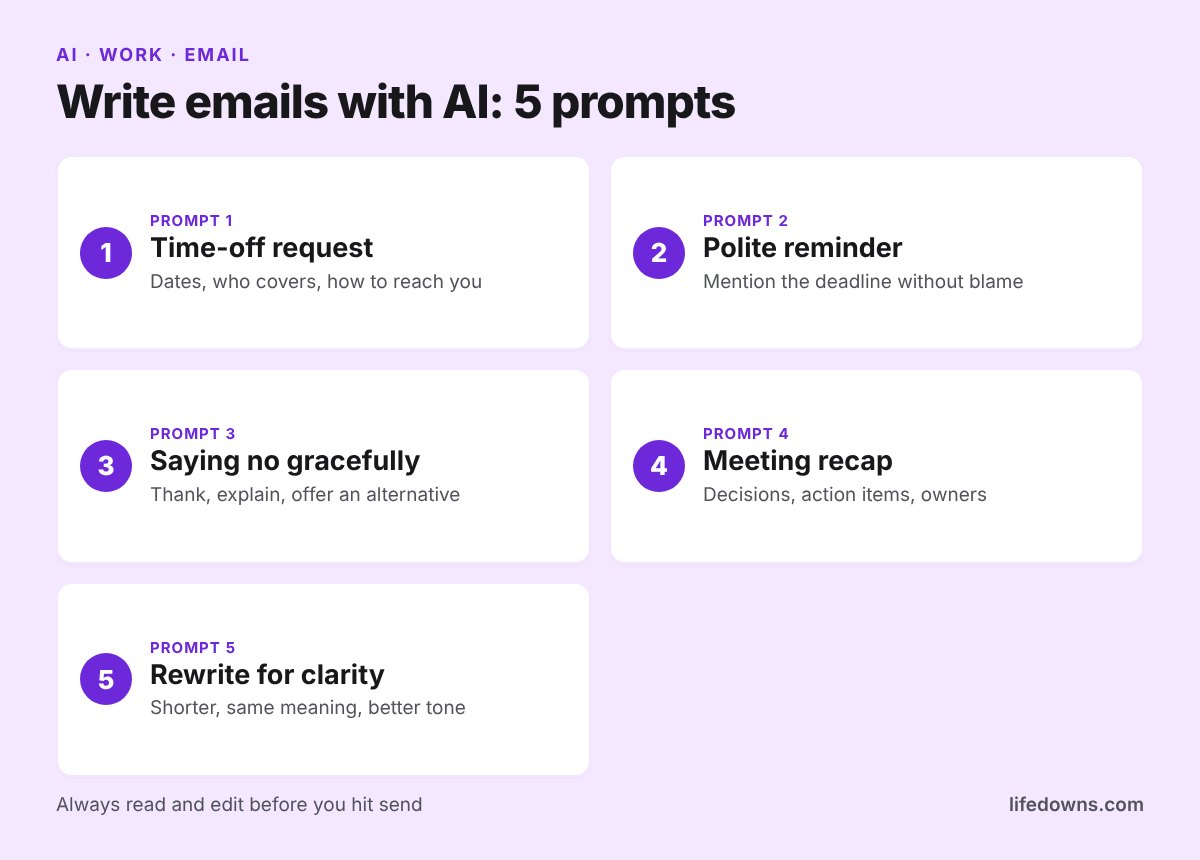
Prompt 1: Time-off request
Write a time-off request to my team lead. I would like to be off from [date] to [date] because of [short reason]. [Colleague] will cover my ongoing work. Polite and concise, under 120 words.
Prompt 2: Polite reminder
Write a reminder to a colleague to send [document] before [deadline]. I already reminded them once on [date]. Friendly tone, no blame, explain why the deadline matters and ask whether they need any help.
Prompt 3: Saying no gracefully
Write an email declining an invitation to [collaborate / attend an event] from [sender]. Reason: [reason]. Open with thanks, decline clearly but kindly, and suggest [an alternative] if appropriate.
Prompt 4: Meeting recap
Using the notes below, write a meeting recap for the whole team in three parts: decisions made, action items with owner and deadline, and open questions. Use bullet points. Notes: [paste notes].
Prompt 5: Rewrite for clarity
Rewrite the email below so it is shorter and easier to understand. Keep the main points and all numbers, with a polite, professional tone. Then list what you changed. Email: [paste email].
4. What to check before you hit send
An AI draft usually reads smoothly, but it is not always right. Your name is at the bottom of the email, so take a minute to go through this table:
| Item | What to check | Why |
|---|---|---|
| Facts | Names, dates, numbers, commitments | AI can add details that are not true |
| Tone | Does it sound like you? | Overly formal emails feel distant |
| Length | Cut filler and long openings | Readers usually skim |
| Privacy | What you typed into the AI | Avoid leaking internal or customer data |
Note: Follow your company’s policy on using AI tools and sharing data.
Things you should not paste into AI
- Passwords, one-time codes, card or account numbers.
- Personal information about customers or colleagues.
- Contracts, quotes and unpublished business figures.
- Anything your company asks you to keep confidential.
5. Summary: write emails with AI as a drafting assistant
You write emails with AI most effectively when you treat it as the person who prepares the draft, while you remain the final editor. Give it context, reader, goal and tone; then read the result, make it sound like you and check every detail before sending.
More in AI: Write Emails with AI: 5 Easy Prompts You Can Use Today and How to Check the Result and Learn English with AI: 6 Simple Ways to Practice Speaking, Writing and Vocabulary in 20 Minutes a Day.
Frequently asked questions: how to write emails with AI
Is it unprofessional to write emails with AI?
No, as long as you read and edit the draft so it says what you mean. What the reader cares about is that the email is clear, accurate and polite.
How do I stop AI emails from sounding robotic?
State the tone you want, ask for a short version, and rewrite the opening and closing lines the way you normally speak.
Should I paste someone else’s email into an AI tool?
Only when it contains nothing sensitive and your company allows it. When in doubt, remove names and figures before pasting.
Can AI help with emails in another language?
Yes. You can describe what you need in your own language and ask for the email in another one, then ask the AI to explain each sentence so you are sure it says what you intend.
Which kind of email do you ask AI to write most often? Share your favourite prompt in the comments! ✉️🤖